


LinkedIn Sales Navigator offers three plans, Core, Advanced, and Advanced Plus, each designed to fit different sales team needs.
For enterprise-level companies managing complex sales processes, the Advanced Plus Plan delivers enhanced features that go beyond basic lead generation.
This guide will focus on the Sales Navigator Advanced Plus Plan, detailing its features, pricing, and how it can elevate sales efforts with its CRM integration, advanced search capabilities, and other features tailored for large-scale sales teams.
What is LinkedIn Sales Navigator Advanced Plus?

LinkedIn Sales Navigator Advanced Plus is the highest-tier offering in LinkedIn’s suite of sales solutions, tailored specifically for large enterprises and extensive sales teams.
It offers a range of exclusive features that enhance customer relationship management (CRM) integration and streamline sales operations.
One of the key features exclusive to Advanced Plus is Enterprise-Level CRM Integration. This allows organizations to connect their CRM systems, such as Salesforce, HubSpot, and Microsoft Dynamics 365 – to unlock the full suite of CRM functionalities within Sales Navigator.
What are the Benefits of using Linkedin Sales Navigator Advanced Plus for Enterprises?
The Benefits of using Linkedin Sales Navigator Advanced Plus for Enterprises include enhanced data accuracy and integrity, and its because of automatic data validation and syncing. This ensures your sales team always works with the most current information.
Advanced Plus’ streamlined workflows eliminate the need for manual data entry, reducing administrative workload and potential errors.
Improved sales efficiency results from access to up-to-date information and seamless CRM integration, allowing your team to focus on selling rather than data management. Insightful analytics from ROI reporting and embedded LinkedIn profiles provide valuable information to refine sales approaches and strategies.
How does Sales Navigator Advanced Plus compare to other plans?
Linkedin sales navigator Advanced Plus vs Advanced vs Core Features
| Feature(s) | Core | Advanced | Advanced Plus |
| CRM integration | No | View Advanced pricing | Request demo for pricing |
| Data Validation | No | No | Yes |
| Lead/Contact Creation | No | No | Yes |
| ROI reporting | No | No | Yes |
| CRM Embedded Profiles | No | No | Yes |
| Account IQ (NEW) | No | No | Yes |
| Buyer Intent signals | No | Yes | Yes |
| Smart Links | No | Yes | Yes |
| TeamLink | No | Yes | Yes |
| Enterprise license management | No | Yes | Yes |
| Usage Reporting | No | Yes | Yes |
| Dedicated LinkedIn account team | No | Yes | Yes |
| Relationship Explorer | Yes | Yes | Yes |
| Relationship Map (NEW) | Yes | Yes | Yes |
| Advanced Search Filters | Yes | Yes | Yes |
| Lead & account recommendations | Yes | Yes | Yes |
| Real-time alerts | Yes | Yes | Yes |
| Account prioritization via Account Hub | Yes | Yes | Yes |
| InMail | 50/month | 50/month | 50/month |
Why Choose Advanced Plus over other plans?
While the Core and Advanced plans offer essential sales features and some CRM integration, Advanced Plus is specifically tailored for large organizations that require comprehensive CRM integration, not just basic or limited features.
It provides automated data management with advanced features like Data Validation and Lead/Contact Creation that automate routine tasks. The in-depth reporting offers detailed ROI reports not available in lower-tier plans.
Moreover, it includes enterprise-level support with features designed to support complex sales operations across large teams.
How Much Does LinkedIn Sales Navigator Enterprise Cost?
LinkedIn Sales Navigator Advanced Plus Plan cost is not publicly listed. The cost/pricing is based on your company’s specific social selling needs.
Based on our research, you can expect to pay around $1,600 per seat annually.
For larger teams requiring CRM integration and additional features, the pricing will vary.
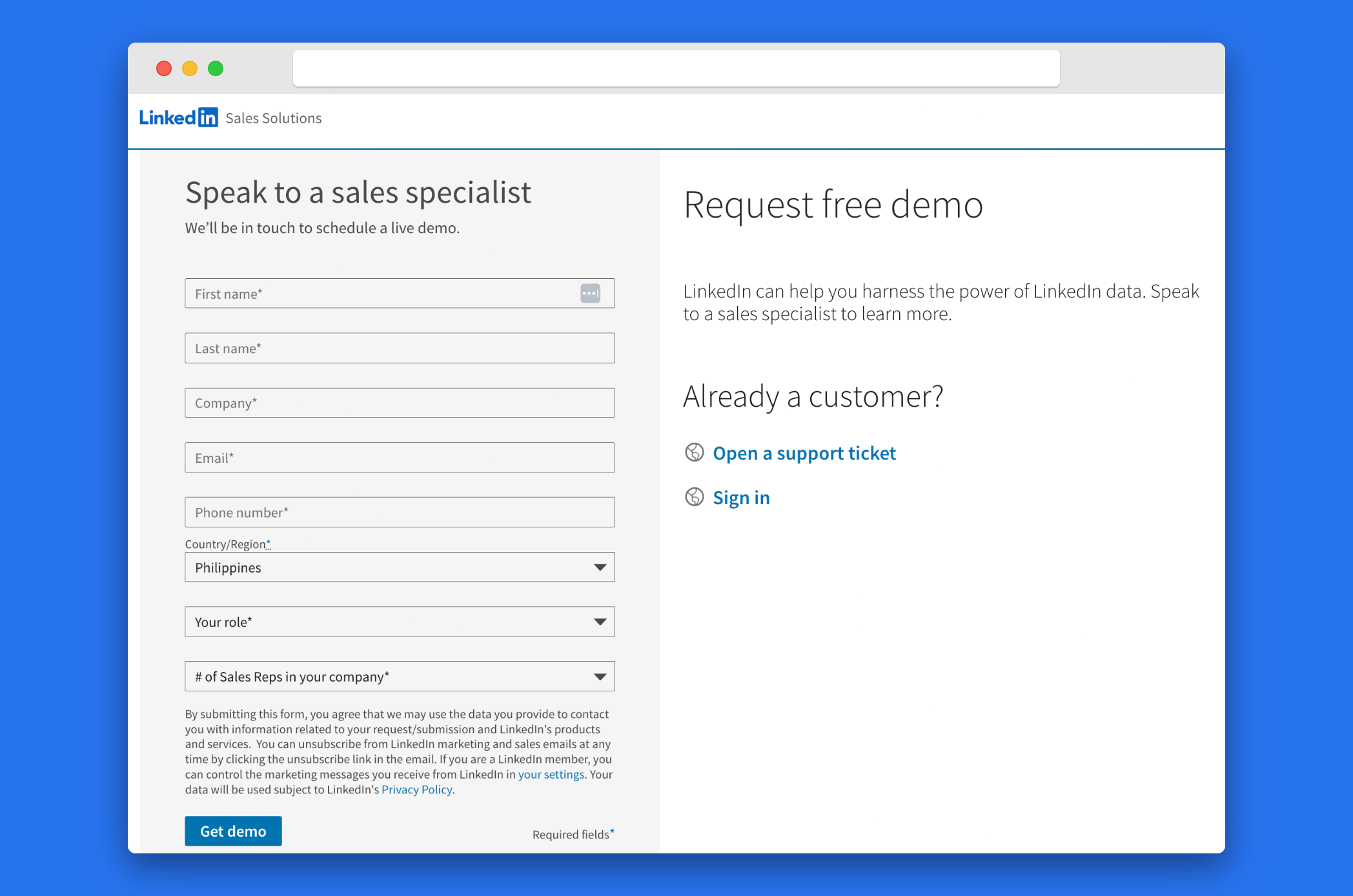
To get a personalized estimate, LinkedIn offers the option to book a demo.
While it may seem like an investment, when compared to traditional manual lead generation methods, the cost is justified by the sales automation capabilities and efficiency it provides.
For comparison:
• Sales Navigator Core (Professional): Around $1,000 per year, billed annually.
• Sales Navigator Advanced (Team): Around $1,575 per year, billed annually.
Main Features of LinkedIn Sales Navigator Advanced Plus
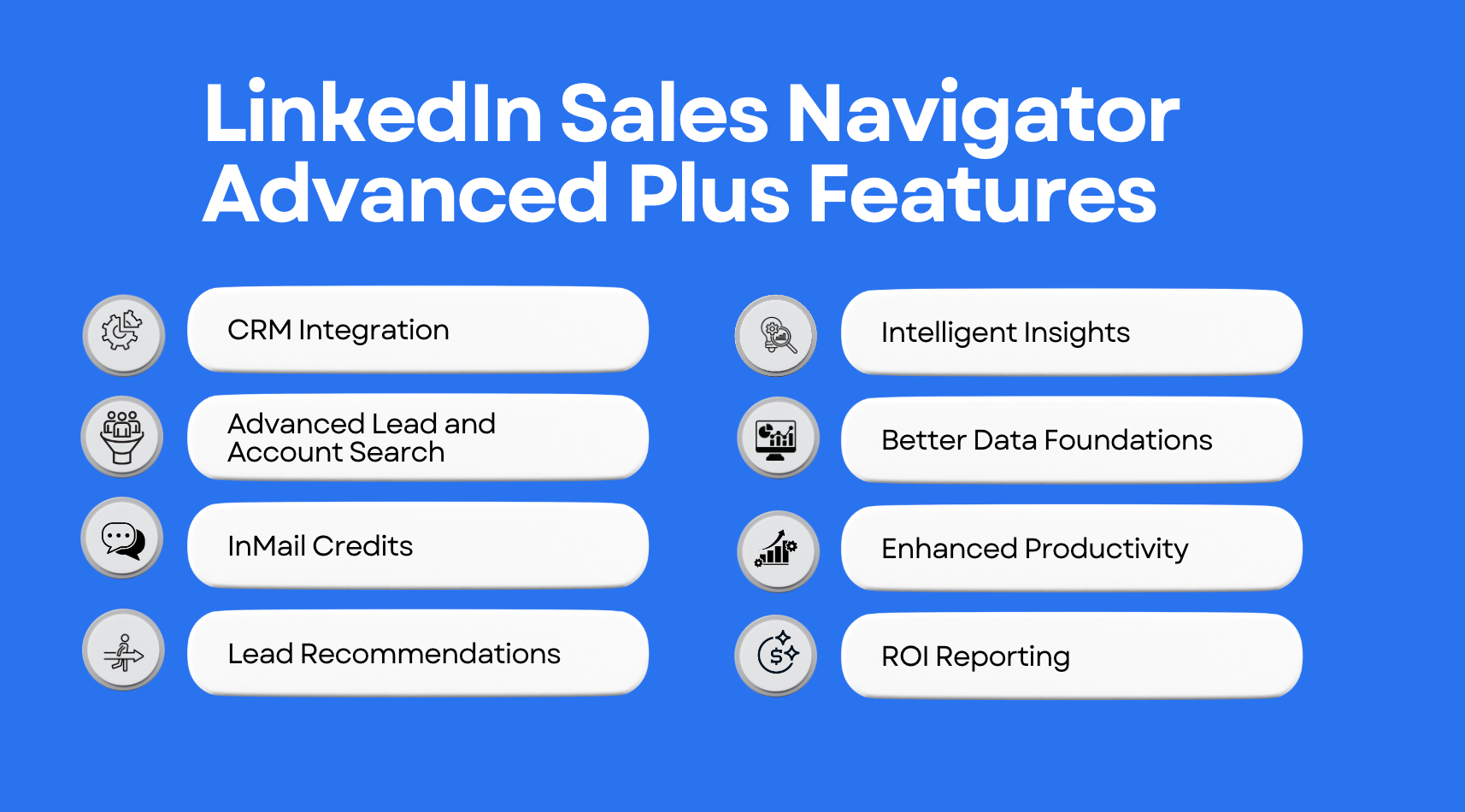
The Advanced Plus Plan sets itself apart with features designed for large sales professionals & teams.
Below are the standout capabilities that make this plan a top choice for enterprise-level sales efforts:
1. CRM Integration
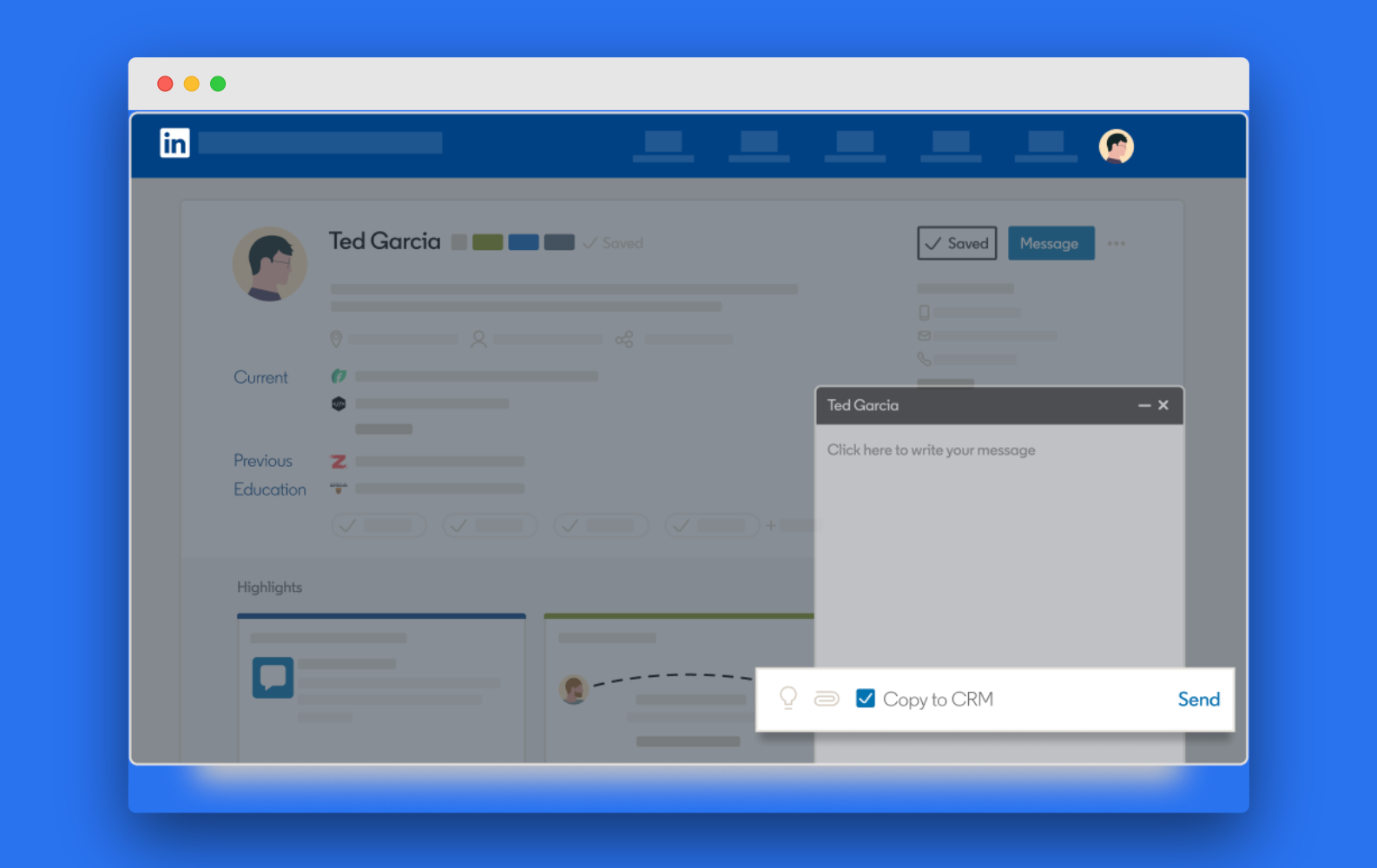
This platform provides seamless CRM integration, allowing you to automatically sync LinkedIn data with systems like Salesforce, Microsoft Dynamics 365 Sales, and HubSpot’s Smart CRM. With activity writeback, InMail messages, notes, and call data are logged into your CRM without manual entry. This ensures that your team has up-to-date information and a complete view of each lead, enabling more effective sales interactions.
2. Advanced Lead and Account Search
Sales Navigator Advanced Plus offers enhanced search capabilities beyond basic LinkedIn accounts. You can access advanced search filters such as company size, job title, recent LinkedIn activity, seniority level, and years in the current position. CRM badges help identify leads that match your CRM records, allowing you to prioritize your outreach. This enables you to create highly targeted lead lists, improving your lead generation process and focusing on ideal prospects.
- 🔍📊 Account has buyer intent
- 📁⭐ Category interest
- 🔗👥 TeamLink connections
- 👤💼 People in CRM
3. InMail Credits

Each user receives 50 InMail credits per month, enabling you to reach out to potential leads outside your network. This feature increases success rates when connecting with key decision-makers, especially in niche industries or hard-to-reach markets.
4. Lead Recommendations
The platform utilizes sales intelligence to automatically suggest potential prospects based on your activity and search history. Real-time alerts notify you when new leads meet your criteria, keeping your sales pipeline fresh with high-quality prospects. This streamlines your lead generation efforts and ensures your sales funnel is continuously filled with relevant opportunities.
5. Intelligent Insights
This plan also offers intelligent insights to further enhance your sales efforts:
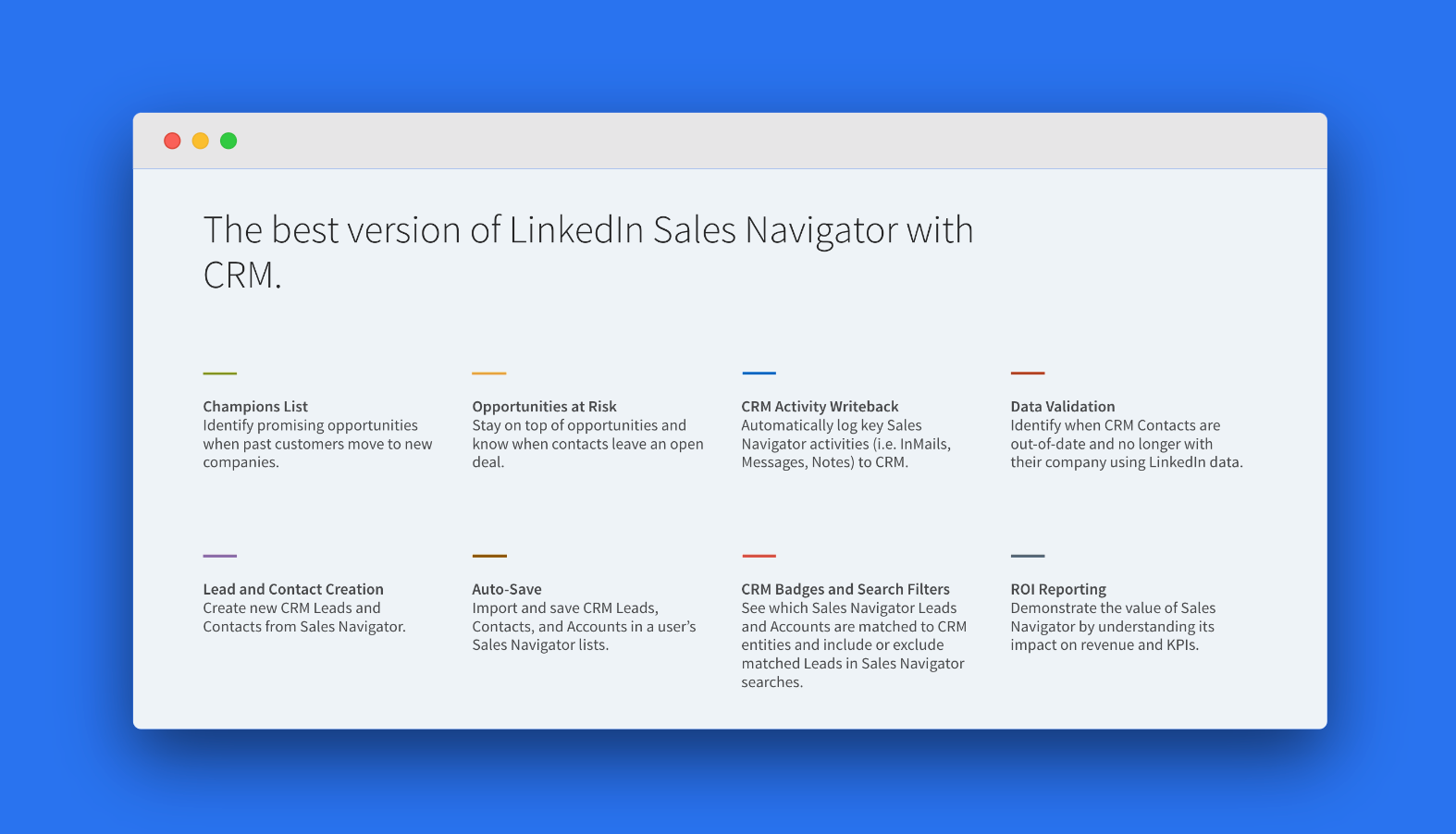
• Champions List: Helps you identify new opportunities when past customers move to new companies.
• Opportunities at Risk: Alerts you when a contact involved in an open deal leaves their company.
• New Prospect Surfacing: Automatically identifies and suggests new prospects based on your sales history.
These insights allow your team to stay proactive and responsive, improving your overall sales effectiveness.
6. Better Data Foundations
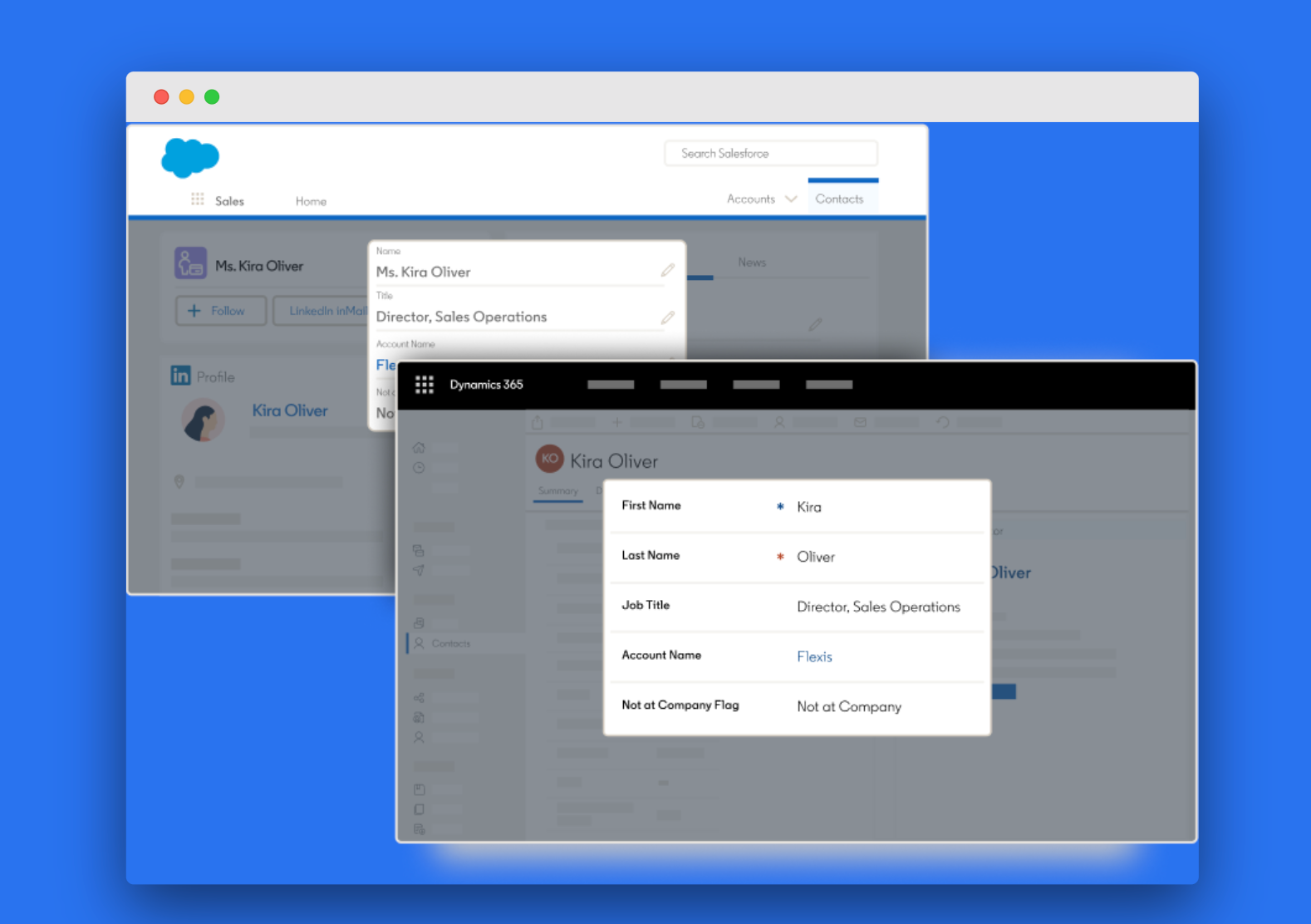
LinkedIn Sales Navigator Advanced Plus ensures that your CRM data stays up to date. Key data foundation features include:
• Data Validation: Alerts you when CRM contacts are outdated using LinkedIn’s real-time data.
• Lead and Contact Creation: Allows you to create new CRM leads and contacts directly from Sales Navigator.
• Auto-Save: Automatically imports and saves CRM leads, contacts, and accounts to your Sales Navigator lists, ensuring data consistency across your tools.
7. Enhanced Productivity
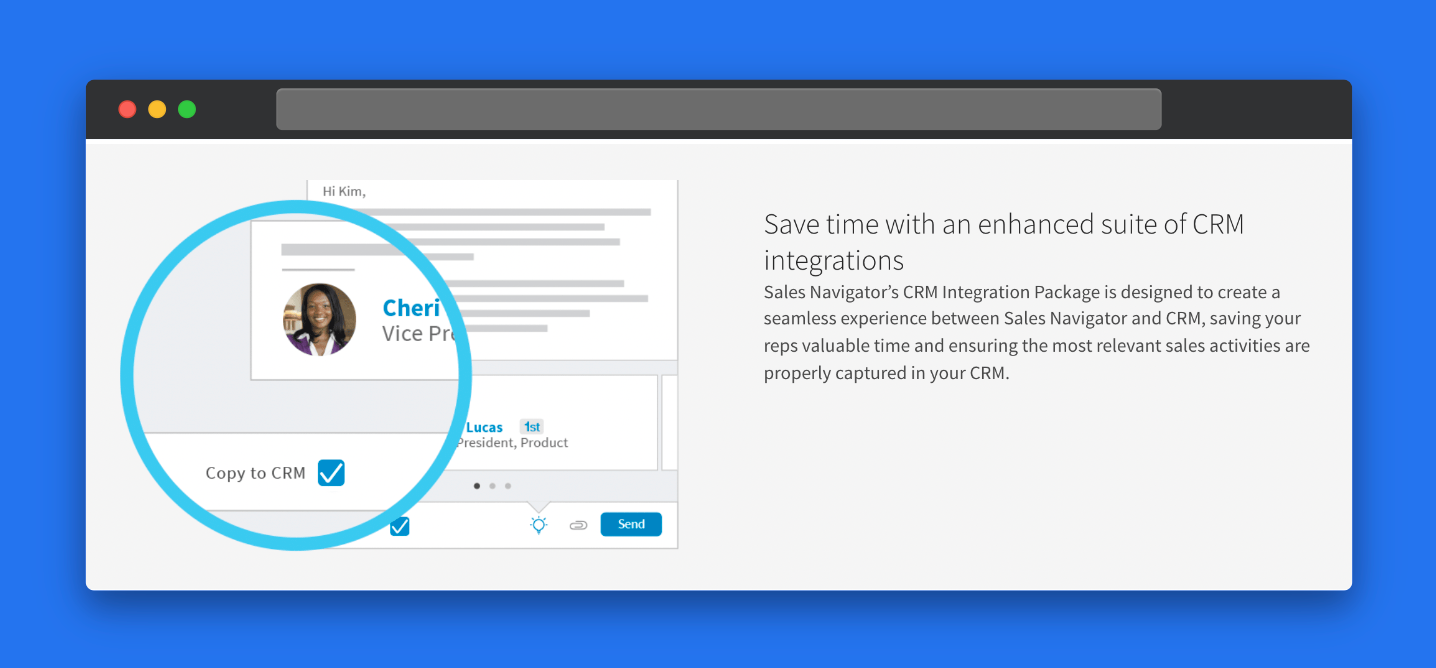
With all these features combined. CRM integration, advanced search, InMail, lead recommendations, and intelligent insights, the Sales Navigator Advanced Plus Plan significantly boosts sales productivity. Your team will spend less time managing contacts and more time building relationships and closing deals. This enterprise sales solution is designed to help large teams manage large-scale sales efforts with ease and efficiency.
8. ROI Reporting
The Advanced Plus Plan includes ROI Reporting, which demonstrates the value of Sales Navigator by showing its impact on your revenue and key performance indicators (KPIs). This feature helps businesses justify their investment in the tool by tracking how much it contributes to sales growth and efficiency.
How Sales Professionals Can Use LinkedIn Sales Navigator Advanced Plus for Maximized Results?
Here are six specific, actionable tips on how to leverage these advanced features:
1. Utilize TeamLink for Warm Introductions
TLDR Feature: TeamLink allows sales teams to identify connections between their teammates and potential leads, enabling warm introductions.
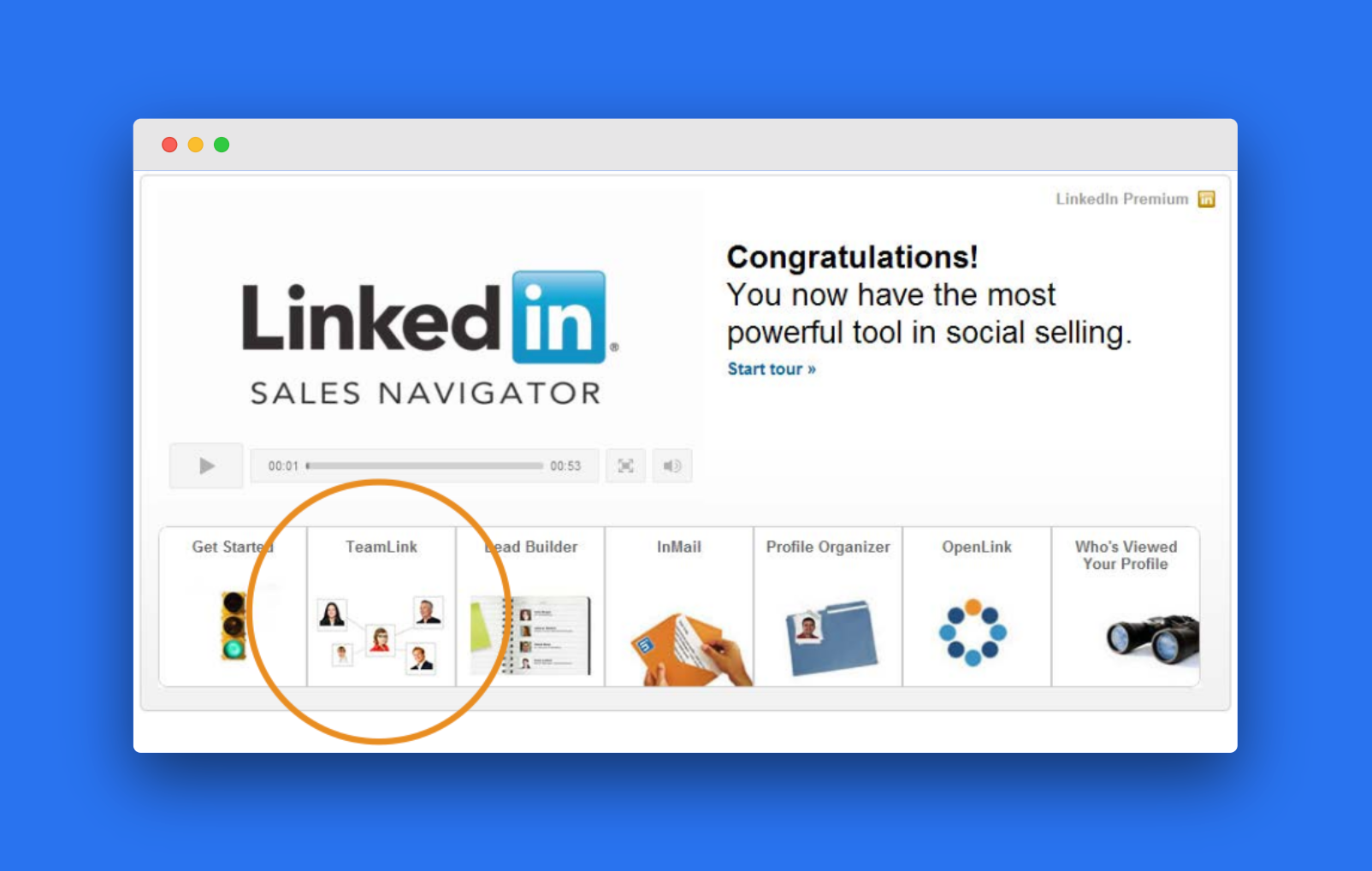
If you have a Sales Navigator Advanced or Advanced Plus account, you can use TeamLink to view your team’s connections. TeamLink uses your entire team’s network to help you find the best path to a lead. It shows you which team members, who hold Sales Navigator licenses, are 1st-degree connections to a lead, even if you are not connected to that teammate. This way, you can see who can help you make a warm introduction to potential leads.
Source: https://business.linkedin.com/content/dam/business/sales-solutions/global/en_US/site/pdf/
Here’s a tip: Your teammates have the same access to your connections.
By default, TeamLink is enabled in Sales Navigator. Users of Sales Navigator Advanced and Advanced Plus editions also have access to TeamLink Groups. This feature allows you to connect multiple contracts, expanding your pool of quality leads. If you want to use connections of people in your organization who don’t need other Sales Navigator features, you can assign them TeamLink Extend seats.
Action Steps
- Identify Warm Connections: Use TeamLink to see if any of your teammates have connections with your target leads.
- Request Introductions: Ask your teammates to introduce you to their connections, leveraging their existing relationships to build trust.
- Personalize Outreach: Mention the mutual connection in your initial outreach to increase the likelihood of a positive response.
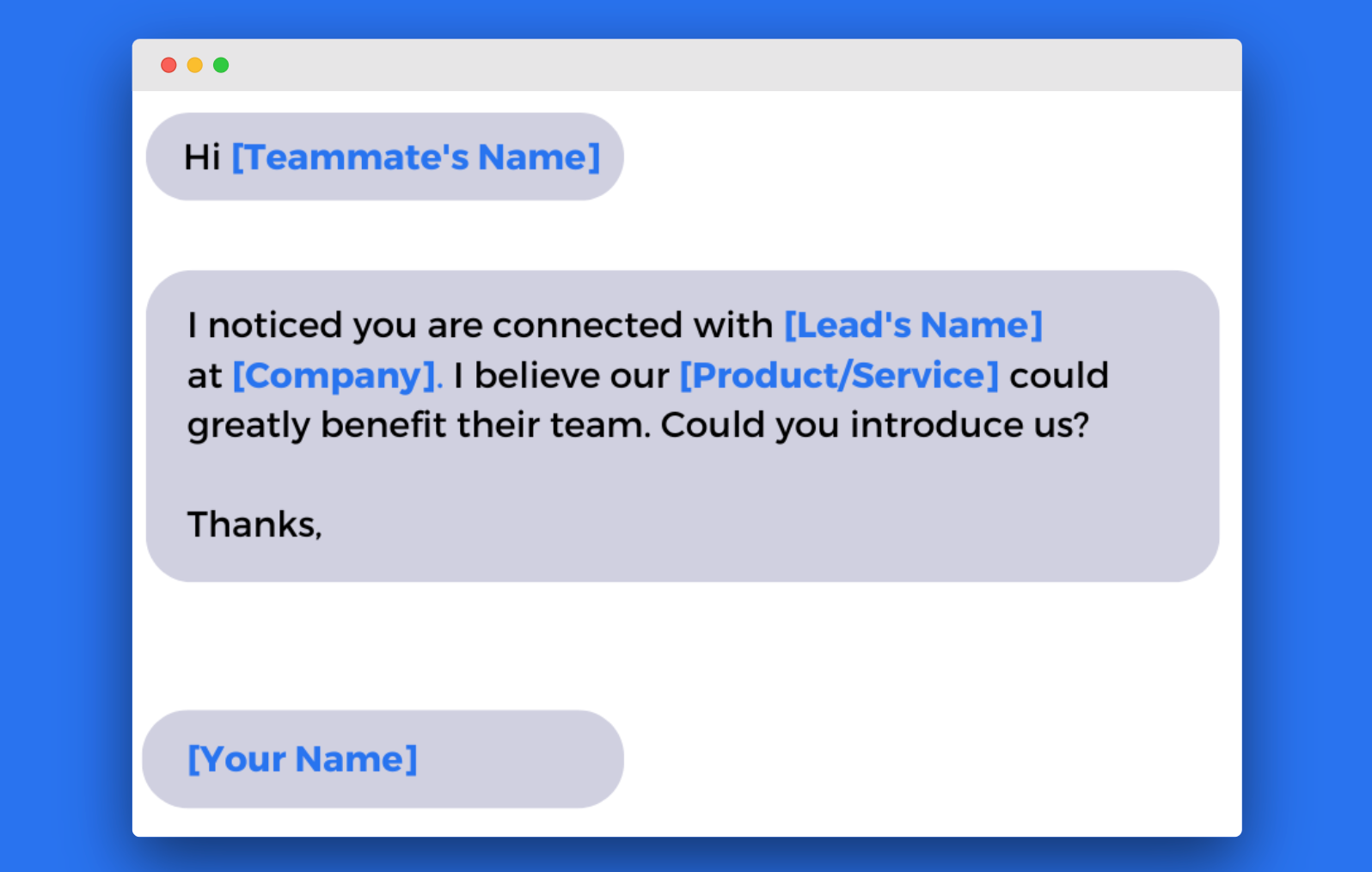
Sample Introduction Request
2. Create and Track Smart Links
TLDR Feature: Smart Links allow you to create and share trackable content, such as presentations, brochures, and videos, and see how prospects engage with it.
How Do I Create a Smart Link?
To create a Smart Link:
- Sign in to Sales Navigator.
- Click Smart Links at the top of your homepage.
- Click New Smart Link.
- Enter your title and click Add files.
- You can add as many files as you’d like to this Smart Link by clicking Add files again.
- To add videos to your Smart Links, click Add Website and enter the website title and address, and click Add.
- To allow recipients to download the files, select the Enable recipient to download viewable files checkbox.
- Click Create.
Action Steps
- Create Content: Upload and organize your sales content (e.g., case studies, product demos) into Smart Links.
- Share with Prospects: Send Smart Links to prospects via email or InMail, highlighting the value of the content.
- Track Engagement: Monitor who views the content, how long they engage with it, and which sections they focus on. Use these insights to tailor your follow-up.
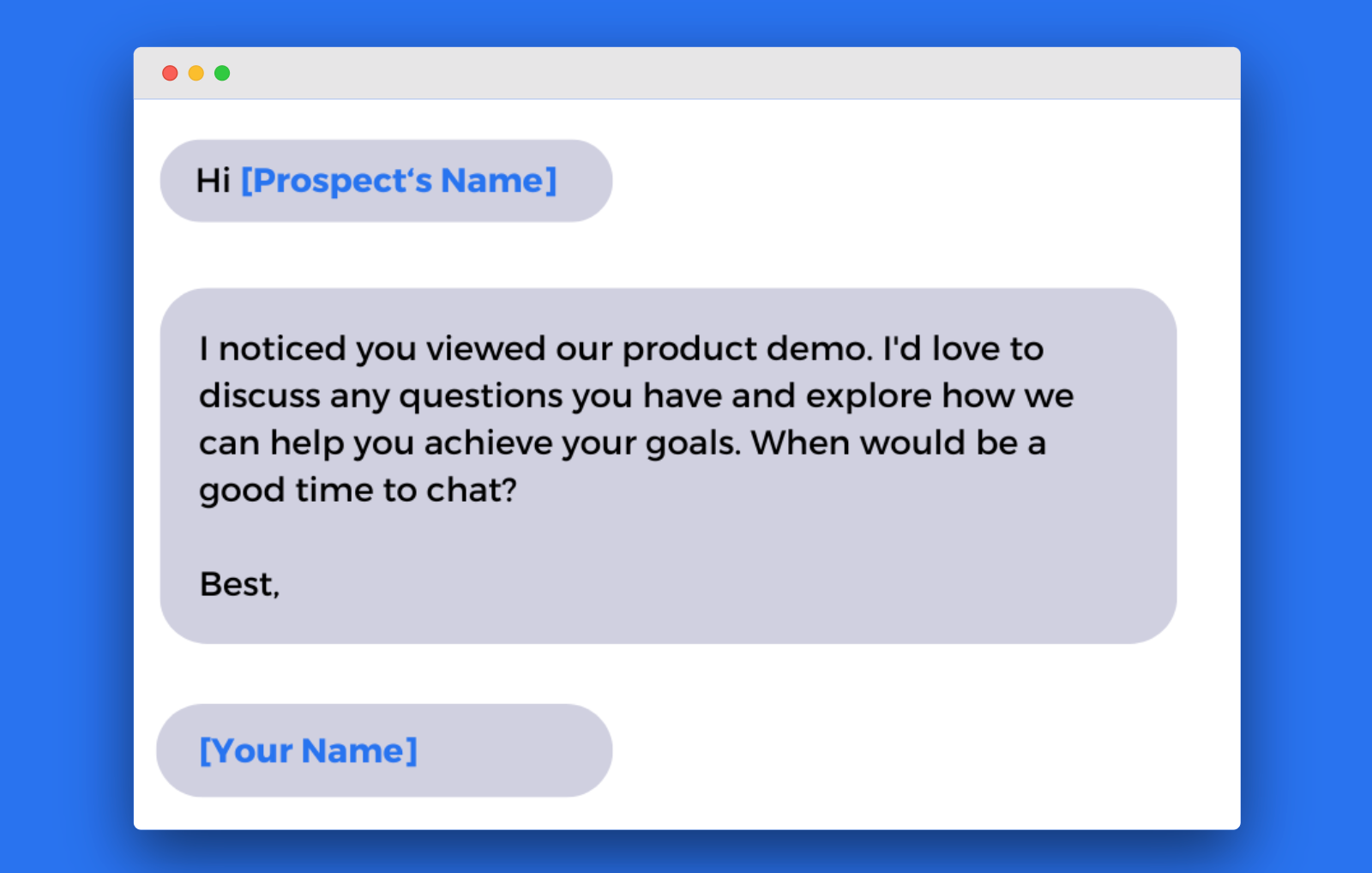
Sample Follow-Up Message
Frequently Asked Question: How Do I Create a Smart Link in an InMail?
To create a Smart Link in an InMail:
- Compose an InMail message from either your Sales Navigator Inbox, or a prospect’s profile.
- At the bottom of the message, click Link.
- In the Create Smart Link panel:
- Enter a Title
- Add files
- When all files have been added, click Insert.
The Smart Link will automatically be added to your message and saved to the Smart Links tab.
3. Use CSV Upload for Efficient Lead Management
TLDR Feature: CSV Upload allows you to bulk import leads from other databases or spreadsheets into Sales Navigator.
Uploading CSV files to Sales Navigator allows you to import data from other B2B databases (like Crunchbase and Wappalyzer), job boards, or CRMs (like HubSpot and Salesforce) into one place. This feature is available only with a Sales Navigator Advanced (Team) account.
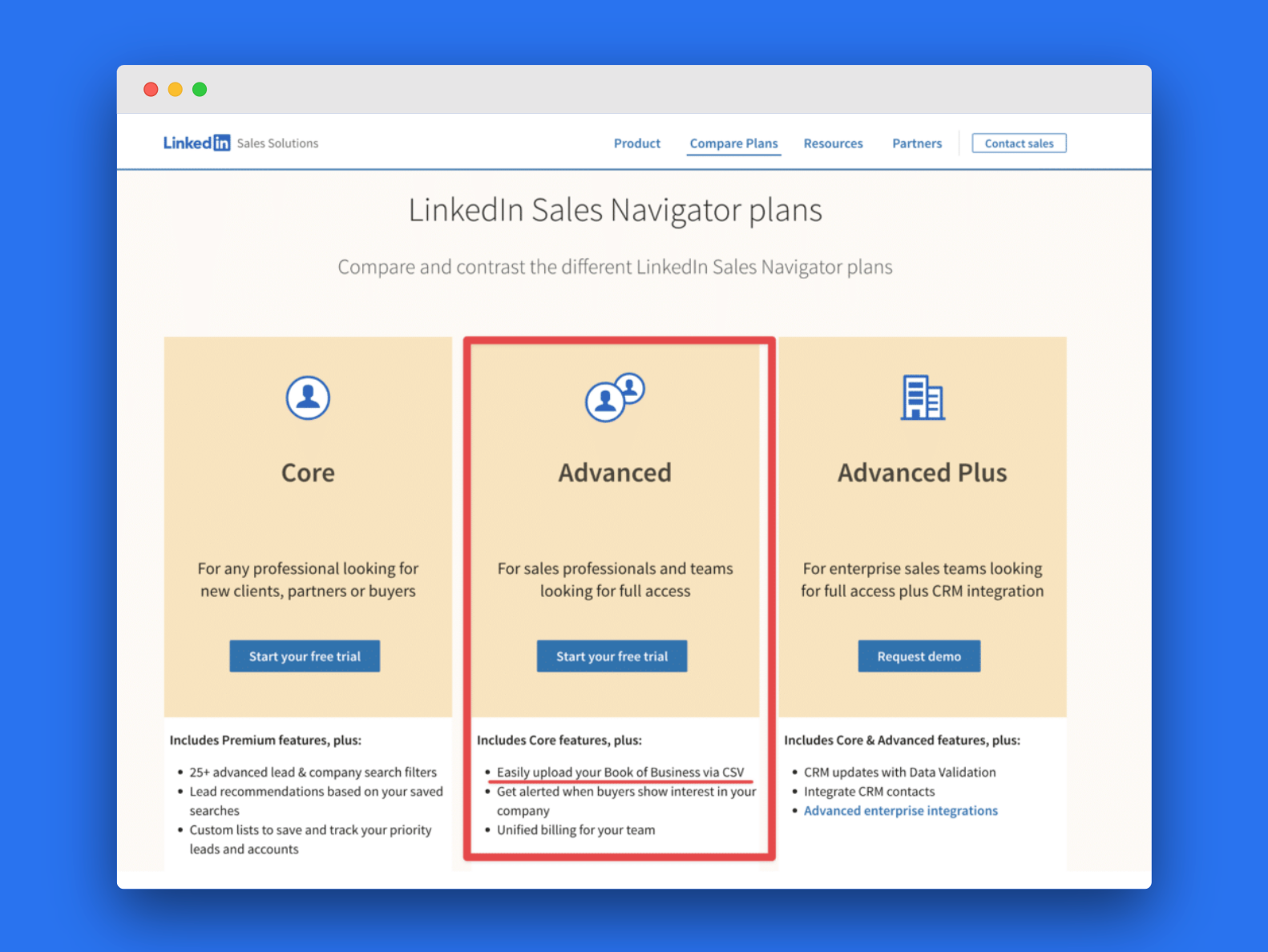
Users with Sales Navigator Core (Professional) must upgrade their subscription to use this feature. Bulk uploading your CSV file saves time compared to searching for target companies one by one.
How to Upload CSV Files to LinkedIn Sales Navigator
To upload a CSV file to LinkedIn Sales Navigator, follow these steps:
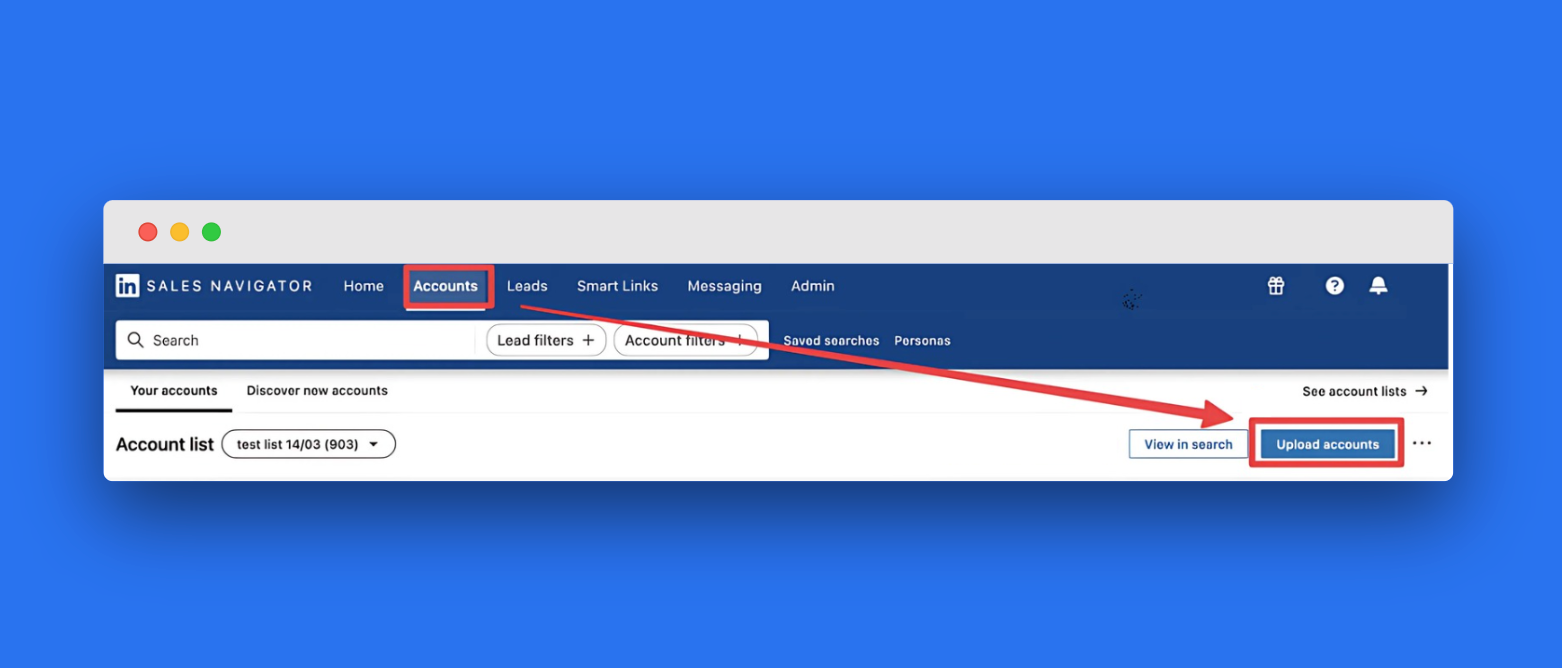
- Go to the Account Lists tab
- In your Sales Navigator account, click Account List > Create an Account List > Upload an Account from CSV. Note that this option is only visible with a Sales Navigator Advanced subscription.
- Upload your file
- Click the upload button, and a pop-up will appear. Follow these guidelines:
- You can upload up to 1,000 companies.
- Include at least the account name.
- Adding more details (like ID, website, etc.) increases the likelihood of LinkedIn matching your CSV with the correct companies.
- Before: Manually adding leads from a trade show list to Sales Navigator, one by one.
- After: Uploading the entire trade show attendee list in a CSV file, tagging them as “Trade Show Leads,” and immediately beginning personalized outreach.
4. Leverage TeamLink Extend for Company-Wide Connections

TLDR Feature: TeamLink Extend expands your reach by showing connections between your entire company (not just your sales team) and potential leads.
TeamLink is a feature in LinkedIn’s Sales Navigator that allows users to leverage their team’s network to find the best paths to leads and accounts. TeamLink Extend lets companies expand their TeamLink network without giving members access to all Sales Navigator features.
If you are given a TeamLink Extend seatyou’ll receive an email invitation that you can accept or decline. Accepting the invitation means Sales Navigator users at your organization can see if you are connected to prospective leads and request an introduction from you. No other information is shared with your dashboard.
By joining TeamLink Extend, you help your organization unlock more sales opportunities. You can change these settings at any time from your Settings & Privacy page on LinkedIn.
Action Steps
- Identify Company Connections: Use TeamLink Extend to find potential leads who are connected to any employee within your company.
- Request Introductions from Non-Sales Colleagues: Ask colleagues outside the sales team to introduce you to their connections.
- Expand Your Network: Regularly review TeamLink Extend to identify new potential connections as your company grows.
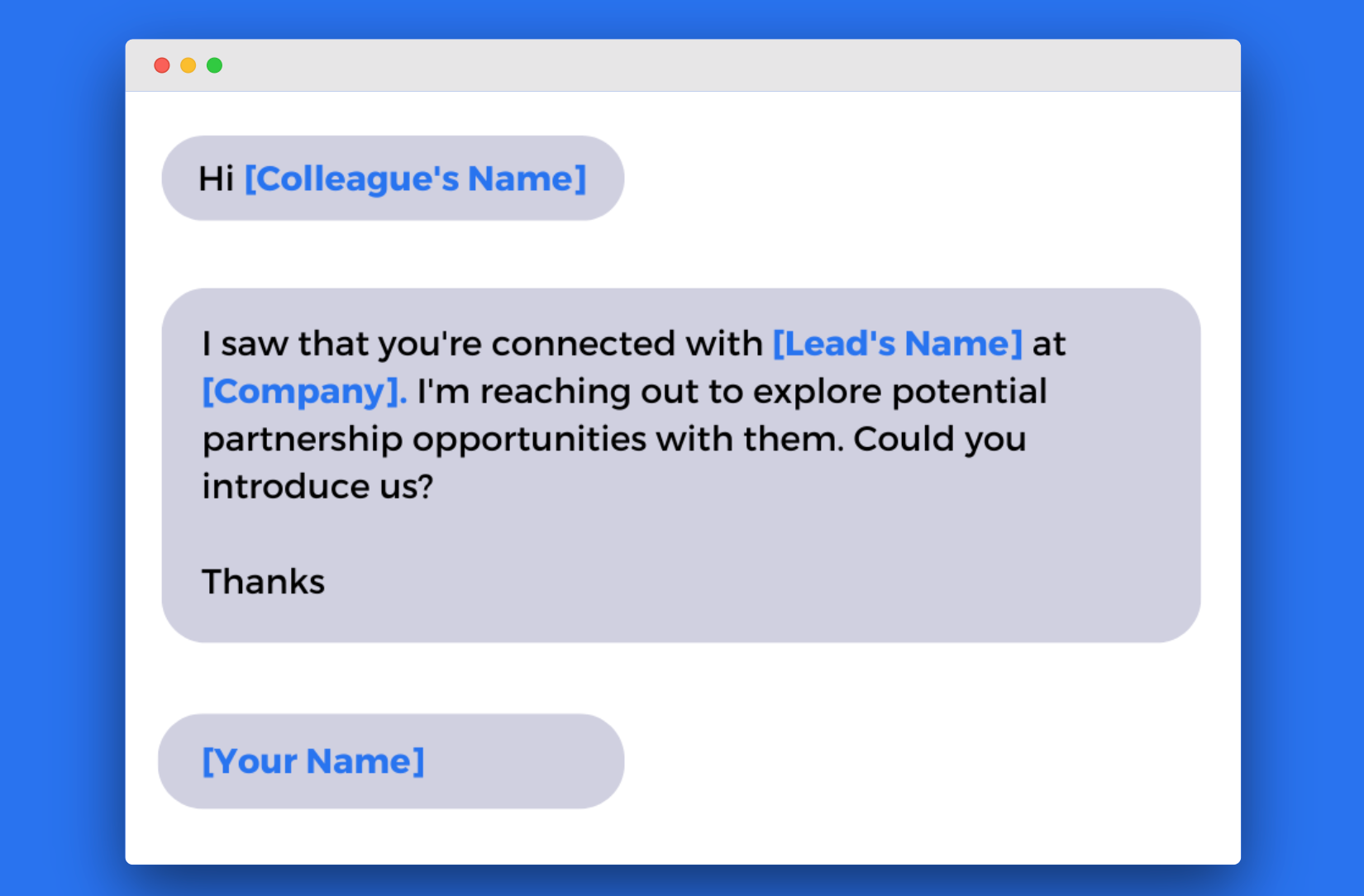
Sample Introduction Request
“Hi [Colleague’s Name], I saw that you’re connected with [Lead’s Name] at [Company]. I’m reaching out to explore potential partnership opportunities with them. Could you introduce us? Thanks, [Your Name]”
5. Synchronize with CRM for Seamless Data Management
To set up CRM synchronization, follow these steps:
- Go to Settings
In your Sales Navigator account, click on your profile picture, then select Admin Settings.
- Select CRM Sync
From the left-hand menu, choose CRM Sync.
- Follow the Instructions
Follow the on-screen instructions to complete the synchronization process. This may involve logging into your CRM and granting necessary permissions.
Once synchronized, updates made in Sales Navigator will reflect in your CRM and vice versa. This ensures you have a unified view of your leads and accounts, making it easier to manage your sales pipeline and maintain accurate records.
Action Steps
- Integrate Systems: Set up CRM synchronization between Sales Navigator and your CRM (e.g., Salesforce).
- Sync Lead Information: Automatically sync lead details, notes, and interactions from Sales Navigator to your CRM.
- Avoid Duplicate Efforts: Use the synchronization to ensure you’re not duplicating efforts by contacting leads already managed by your colleagues.
Benefits of CRM Integration
- Before: Manually entering lead information from Sales Navigator into your CRM, risking data errors and duplication.
- After: Automatic synchronization keeps your CRM updated with the latest lead interactions and notes from Sales Navigator, improving efficiency and accuracy.
6. Receive Real-Time Contact Updates
TLDR Feature: Real-time contact updates notify you when leads change jobs or roles, helping you stay informed and adjust your sales strategy accordingly.
What You Can Do
- Monitor Updates: Set up notifications for job changes, promotions, and other significant updates for your leads.
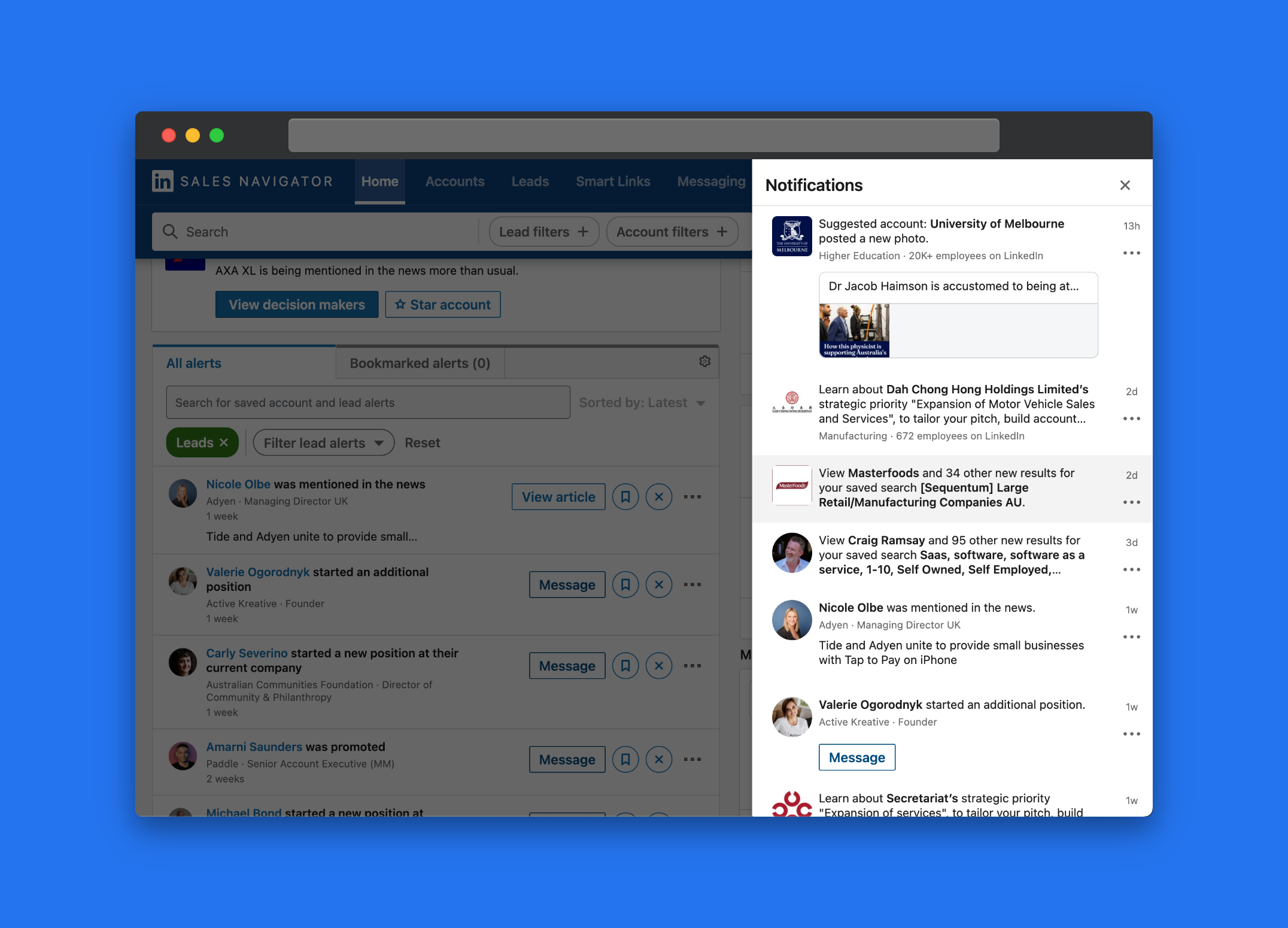
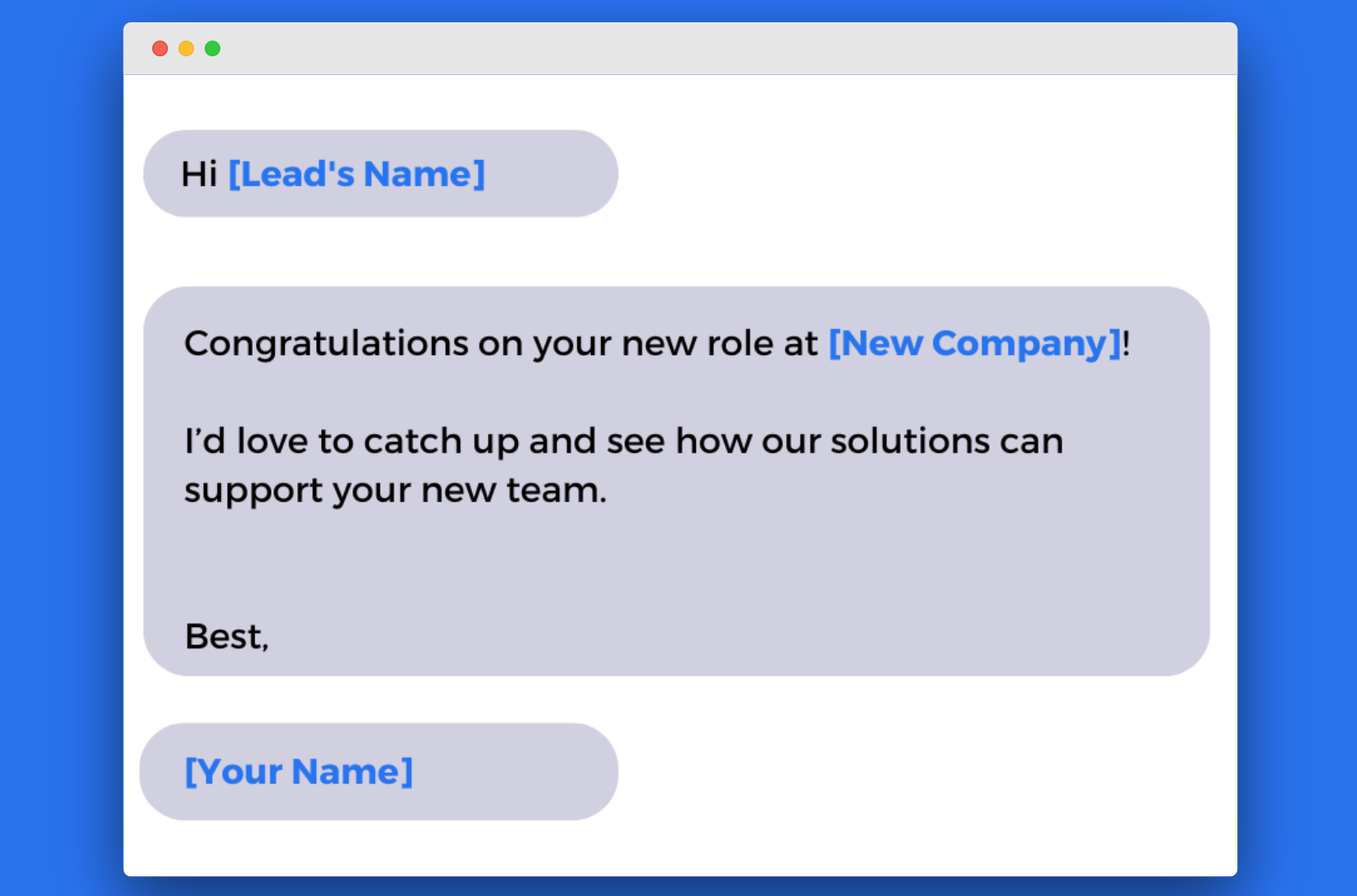
- Adjust Outreach Strategy: Reach out to leads with personalized messages when they move to new companies or roles, offering congratulations and discussing new opportunities.
Sample Outreach After Job Change
- Maintain Relationships: Use updates to maintain relationships with leads, even if they switch companies, by continuing to offer relevant value.
Frequently Asked Questions Advanced Plus Plan
How much does LinkedIn Sales Navigator Advanced Plus cost?
The LinkedIn Sales Navigator Advanced Plus plan doesn’t have a publicly available price.
It is usually custom-priced based on your company’s needs.
However, it typically costs around $1,600 per seat annually.
For accurate LinkedIn Sales Navigator pricing, companies are advised to contact LinkedIn directly for a quote tailored to their sales process and sales team size.
What is LinkedIn Sales Navigator Advanced and how does it differ from other plans?
LinkedIn Sales Navigator Advanced offers more robust features than the Sales Navigator Core plan.
It is designed for sales teams that need more advanced features like CRM integration, smart links, and advanced search filters.
The Advanced plan is ideal for sales teams that want deeper insights and more customization in their sales process.
What are the differences between Sales Navigator Core and Advanced Plus?
Sales Navigator Core is designed for smaller teams or individual sales professionals, offering basic features for prospecting.
In contrast, Sales Navigator Advanced Plus is for enterprise-level teams and includes additional features like CRM leads, data validation, and advanced search filters.
It also allows for deeper CRM integrations, helping large teams with complex sales processes.
Is LinkedIn Sales Navigator worth the investment for sales teams?
Advanced Plus is designed for large organizations needing full CRM integration and advanced automation.
It streamlines data management with features like Data Validation and Lead/Contact Creation, automating tasks that save time.
It also offers detailed ROI reporting and enterprise-level support for complex sales operations, making it ideal for managing large teams effectively.
Can Sales Navigator integrate with CRM systems?
Yes, Sales Navigator Advanced Plus is known for its powerful CRM integration.
It works with systems like Salesforce, HubSpot, and Microsoft Dynamics to sync lead information, making it easier to track and manage prospects.
This integration ensures that all interactions are logged directly into the CRM, improving sales efficiency and sales processes.
What are the benefits of CRM data integration in Sales Navigator Advanced Plus?
One of the key features of Advanced Plus is the ability to integrate CRM data directly into LinkedIn.
This allows for the automatic syncing of contact creation, notes, and messaging logs into systems like Salesforce.
How can Sales Navigator Advanced Plus help improve sales funnel management?
Sales Navigator Advanced Plus offers features like smart links and real-time buyer intent signals that help guide prospects through your sales funnel.
By using advanced filters and CRM integrations, your team can target key decision-makers and ensure they’re focusing on the most relevant leads.
Does LinkedIn Sales Navigator offer a free trial?
Yes, LinkedIn Sales Navigator offers a free trial for one of its plans i.e Core.
The trial lasts for 30 days (1-Month).
During this trial, sales teams can test features like InMail credits, custom lists, and advanced search filters to see if it meets their prospecting needs.
Bonus Tip
You can export leads with emails and phone numbers from LinkedIn Sales Navigator using Scalelist with just one click. If you want to learn how, watch the video below.
Unlock LinkedIn Lead Generation
Easily extract leads from LinkedIn Sales Navigator with Scalelist. Start your free trial today.
Try Scalelist